No products
Prices are shown in Polish złoty (PLN).
Choose your currency:
Prices in zloty - you can change the currency at any time at the top of the page.
- Classic Cubes
- Puzzles
- Pyraminx 132
- Megaminx 144
- Minx+ 42
- Skewb 93
- Square-1 37
- Clock 38
- FTO and CTO 19
- Mirror 64
- Gear 41
- Shape Mods 201
- Axis, Fisher and Windmill 43
- Ghost Cube 10
- Mixup 15
- Crazy and Bermuda 45
- Void & Bandaged 32
- Unusual Cubes 20
- Cuboids 78
- Pyramorphix/Mastermorphix 32
- Helicopter, Dino and Rex 33
- Polyhedra 102
- Snake 47
- Magic 3
- Rainbow Ball 8
- Klotski 22
- Brain Teasers 62
- Fidget Toys 24
- Shape Mods 37
- Picture Cubes 26
- Keychains 22
- Giant Cubes 37
- Mini 24
- Collectible Cubes 57
- Mosaic Cubes 13
- Cube Sets 29
- Other 2
- Smart Cubes & Electronic Puzzles
- Accessories
- Hobby
- Lubes
- Outlet

Speedcubing timer beta
Send feedback or correctionsHow to use the timer
- Start and stop: the space bar on a computer or tap the time area on a phone. With inspection, the first press starts 15 seconds of inspecting the cube, then hold until the time turns green and release to start solving.
- WCA competition-style inspection: alerts at 8 and 12 seconds, +2 penalty after 15 seconds, DNF after 17 seconds.
- Sessions: separate for each event - from 2x2 to 7x7, one-handed, blindfolded, Pyraminx, Skewb, Megaminx, Square-1 and FTO.
- Statistics: best time, averages of 5, 12, 50 and 100 (excluding the best and worst result, as in WCA), mean of 3 for 6x6, 7x7 and blindfolded events, and a progress chart.
- Saving: without logging in, your times stay in this browser. Once you log in, they'll be saved to your account and you'll see them on every device.
- Moving from csTimer: in Settings you can import a csTimer export file and export your times in the same format.
Wired timer (Stackmat)
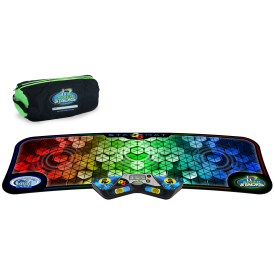
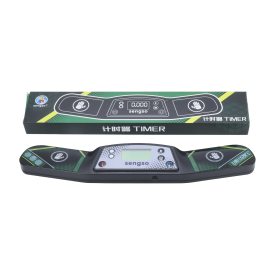
SpeedStacks Stackmat timers and compatible models have a port for connecting to a computer. Tested: SpeedStacks Gen 4 and Gen 5, QiYi (including Mythical) and Sengso. MoYu and YJ timers do not work with a cable because they do not send a readable signal. Plug the cable into the microphone input of your computer or phone (for a phone without a headphone jack, use a USB-C to jack adapter with microphone support), select “Cable timer” at the top and allow microphone access. The timer then measures the time, and the page saves every solve.
Smart cubes and Bluetooth timers
Bluetooth cube: select “Bluetooth cube” at the top and connect your cube: GAN (i Carry, i Carry 2, i3, i4, GAN12 ui and other GAN smart cubes), QiYi Smart Cube, XMD Tornado V4 i, MoYu WeiLong V10/V11 AI or a 2x2 cube: GAN251 ui or MoYu WeiPo V5 AI. Once connected, the timer sets the 2x2 or 3x3 event automatically. Make sure the cube isn't connected to another app. Next to the timer you'll see a 3D preview of the cube showing your moves, and with gyroscope cubes (e.g. GAN i4, XMD Tornado V4 i) the preview also rotates as you turn the cube in your hand. Scramble following the scramble - completed moves turn grey, and after the last one inspection starts automatically. Your first move starts the timer, solving the cube stops it, and your moves and TPS are saved in the solve details. The connection works in Chrome, Edge and Opera on computers and Android (not in Firefox, Safari or on iPhone).
Bluetooth timer: GAN Smart Timer, QiYi Smart Timer and the QiYi Bluetooth adapter for regular timers - select “Bluetooth timer”. MoYu AI Timer is not supported yet (it encrypts data in an unknown way).
GAN Robot: the “Robot” tab - the robot scrambles a 3x3 cube following the on-screen scramble and can solve it. How to prepare it and in what order to use it is described in section 5 below.
Connection problems? Step-by-step solutions
1. Wired timer - computer
- Microphone permission: the page reads the timer through the microphone input, so your browser must allow it. When asked, select the microphone from the jack (not the built-in one) and click “Allow”. If the microphone was blocked earlier: icon to the left of the address → Site settings → Microphone - it must not be set to “Block”. After making changes, refresh the page.
- Plug the cable from the timer's data port into the microphone input. The SpeedStacks Gen 5 has a recessed port on the bottom - push the plug all the way in.
- Laptop with a single jack (headphones + microphone): you need a TRRS splitter for headphones and microphone, with the timer cable plugged into the “microphone” part. Some laptops do not detect a microphone in this jack at all - in that case a USB sound card with a microphone input will help.
- Windows - cleaner signal: press Win + R, type mmsys.cpl, go to the Recording tab → double-click the microphone from the jack (not “Microphone Array” - that's the built-in microphone). In the Levels tab, set the slider to 20-40 and microphone boost to 0 dB; in the Enhancements / Advanced tab, turn off effects and enhancements. In Settings → System → Sound → Input, also turn off “Audio enhancements”.
- Mac: System Settings → Sound → Input → external microphone, input volume around 50%.
- Laptop manufacturer audio apps (Realtek, Dolby, Lenovo Vantage, Dell MaxxAudio): turn off noise reduction and microphone effects in them.
- The time stutters, flickers or starts late - the signal is too loud: lower the level and gain. Stuck on “Waiting for signal” - the signal is too quiet, or the plug or selected input is wrong: turn the volume up to 50-70% and check the connection. After changing the settings, select “Wired timer” again or refresh the page.
The simplest solution: QiYi Timer Bluetooth Adapter. It works not only with QiYi timers but also with GAN timers, SpeedStacks Gen 4 and Gen 5, Sengso and other Stackmat-compatible timers. The signal goes via Bluetooth, so most cable, microphone and sound settings problems disappear, and thanks to the extra adapter cable it fits almost all timers.
2. Wired timer - phone
- For a phone you always need a TRRS splitter (headphones + microphone) - if the timer is plugged directly into the jack, the phone treats it as headphones and doesn't receive its signal. Phone without a jack: a USB-C → 3.5 mm jack adapter with microphone support.
- Phones don't have a microphone sensitivity setting, and the timer signal is usually too strong for them - it distorts, so the time isn't read or stutters. An extra device helps: a 3.5 mm audio signal attenuator (-20 or -30 dB) plugged in between the timer cable and the splitter's microphone plug - it lowers and cleans up the signal.
- Use Chrome on Android and allow the site to access the microphone (as in step 1). When choosing the input, select the USB adapter or headset, not the phone's microphone.
The simplest solution: QiYi Timer Bluetooth Adapter. It works not only with QiYi timers but also with GAN timers, SpeedStacks Gen 4 and Gen 5, Sengso and other Stackmat-compatible timers. The signal goes via Bluetooth, so most cable, microphone and sound settings problems disappear, and thanks to the extra adapter cable it fits almost all timers.
3. Bluetooth timer and Bluetooth adapter
- Bluetooth connection works in Chrome, Edge and Opera on desktop and Android. It does not work in Firefox or Safari, or on iPhone and iPad (no iOS browser supports Web Bluetooth). If you use Firefox, open the timer in Chrome.
- Check that your browser allows our site to use Bluetooth: click the icon to the left of the address (padlock or sliders) → Site settings → Bluetooth devices - it must not be set to “Block”. You can see all sites with blocked Bluetooth in Chrome at chrome://settings/content/bluetoothDevices. After making changes, refresh the page.
- Bluetooth must be turned on on your computer or phone. On Android, Chrome needs the “Nearby devices” permission (on older versions, the location permission).
- The timer or adapter can't be connected to another app or another phone - close the manufacturer's app and, if necessary, turn off Bluetooth on the other device.
- The QiYi adapter must be plugged into a timer that is switched on. If it doesn't appear on the list or stops responding, hold its only button for 5 seconds - the adapter will reset. Then connect it again.
- The page asks for a MAC address (QiYi adapter, QiYi and XMD cubes): the browser doesn't always provide it. The easiest way is to go to chrome://flags/#enable-experimental-web-platform-features in Chrome, set it to Enabled and restart Chrome - the page will then read the address itself. If the address you entered is wrong, you'll see the message “most likely wrong MAC address” and an Enter MAC address button.
- If the connection drops, click “Reconnect”, and if that doesn't help, refresh the page.
4. Electronic cubes (smart cubes)
- Make sure the cube is charged.
- The cube must not be connected to another device or app (e.g. the manufacturer's phone app) - close it or turn off Bluetooth on that device.
- Make sure Bluetooth is turned on on your laptop or phone (and that your browser is Chrome, Edge or Opera - see step 3).
- Make sure your browser allows our site to access Bluetooth (icon next to the address → Site settings → Bluetooth devices, not “Block” - as in step 3). If the cube selection window does not open at all, this is the most common cause.
- The cube must be awake - if it is not on the list, turn any face a few times and wait a moment. Look for these names on the list: GAN… (GAN cubes), QY-QYSC… (QiYi), XMD-TornadoV4-i… (XMD), WCU_MY… (MoYu).
- The page asks for the cube's MAC address - see step 3.
- The preview shows a different state than the cube in your hand: solve the cube and click Reset cube below the preview. The preview rotates differently than the cube: hold it with white on top and green facing you, and click Reset rotation.
- A 2x2 cube works in the 2x2 event, and a 3x3 in 3x3 and its variants - once connected, the timer sets the correct event automatically.
5. GAN Robot - how to use it
Preparing the robot:
- Make sure you have an electronic cube that is compatible with the robot.
- Make sure the arms that match this cube (v1 or v2) are attached.
- The arms must be evenly aligned, the cube well lubed and the arms degreased - otherwise they will slip.
- Insert the cube with the white face up (the robot doesn't grip this face) and green facing forward.
Page order:
- Make sure Bluetooth is turned on and your browser allows our site to use Bluetooth (as in step 3).
- Turn on the robot and select the Robot tab at the top, then Connect robot and choose it from the list (its name starts with "GAN-").
- Click Show front - the robot will turn the front face back and forth. That should be the green face; if it isn't, reposition the cube.
- Optional: Add cube - connect the smart cube that is in the robot. The timer can then see its state and measures the time automatically.
- Select the 3x3 event and click Scramble with robot - the robot will perform the scramble shown on the screen. You can change the robot's speed in Settings. The robot can't grip the top face, so it performs U moves in a roundabout way using other faces - that's why it makes more moves than the scramble has. This is normal; the cube ends up in the same state.
- Solve with robot - the robot will undo its last scramble, or solve the cube from the state of a connected Bluetooth cube or from an entered algorithm.
Important: if the arms slip or a face hasn't turned fully, do not continue solving - the cube's state no longer matches what the robot is calculating. Take out the cube, solve it and start again from the first preparation step.
6. Still not working?
Write to us: report a problem or send feedback. To help us help you quickly, include:
- the model of the timer, adapter or cube (ideally the name from the Bluetooth list),
- whether it's a computer or a phone, which system (e.g. Windows 11, Android 14) and which browser,
- what exactly you see on the screen - the message text or a screenshot,
- whether anything worked before, e.g. a different timer or the same thing on another device.
To find out which timers and cubes cause problems, when you connect a timer, cube or robot, the page sends us a short technical report (device model, browser, data read from the timer). We do not record audio from your microphone.
Timer hardware
Everything you need to connect your timer to a computer or phone - via cable or Bluetooth.
- 24,99 zł
- 4.2 (5)7,99 zł
- 14,99 zł 7,50 zł
- 5.0 (2)7,99 zł
- 19,99 zł


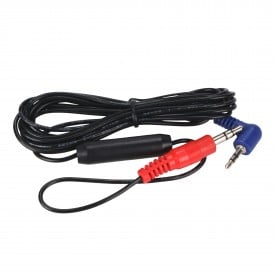
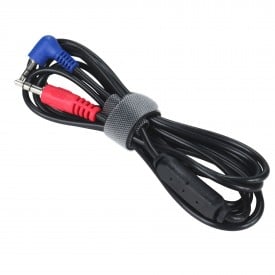
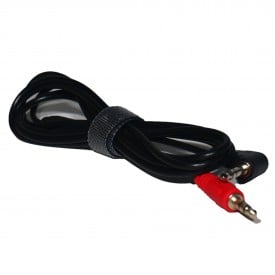
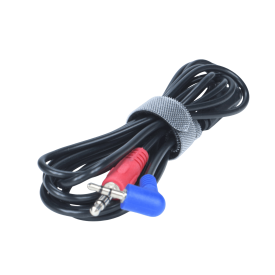
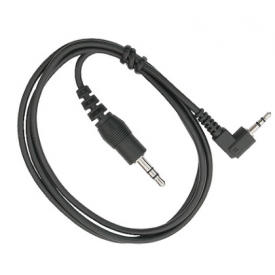
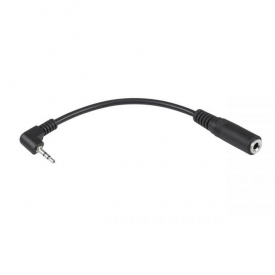
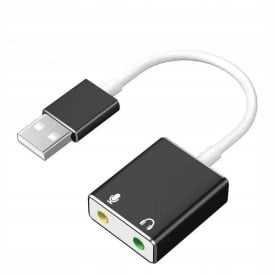
Bluetooth timers connect to the timer page directly; others connect with a cable or via the QiYi Timer Bluetooth Adapter.
- 5.0 (2)59,99 zł
- 54,99 zł
- 5.0 (2)219,99 zł
- 5.0 (7)159,99 zł 143,99 zł
- 5.0 (6)209,00 zł 188,10 zł
- 4.8 (39)49,99 zł 39,99 zł
- 49,99 zł
- 5.0 (1)39,99 zł
- 5.0 (1)39,99 zł
- 49,99 zł
- 5.0 (1)44,99 zł 22,50 zł







Smart cubes you can connect in the “Bluetooth cube” tab: the timer starts with your first move, and the 3D preview shows your moves.
- 89,99 zł
- 119,99 zł
- 5.0 (1)109,99 zł
- 4.0 (1)134,99 zł
- 149,99 zł
- 5.0 (1)169,99 zł 144,49 zł
- 5.0 (1)199,99 zł
- 269,99 zł
- 209,99 zł
- 4.4 (5)274,99 zł 206,24 zł
- 299,99 zł
- 249,99 zł
- 5.0 (2)389,99 zł
- 279,99 zł
- 299,99 zł


The GAN Robot scrambles and solves a 3x3 cube in the „Robot” tab. The arms and center caps must fit the cube.
- 5.0 (2)299,99 zł 179,99 zł
- 19,99 zł
- 14,99 zł
- 14,99 zł
- 14,99 zł